Max for Live·Ableton Live 11 / 12
Tuple
Every chord in your key, one click away.
A chord-grid instrument for Ableton Live: explore, perform and record
harmony in real time — triads, sevenths, ninths, borrowed chords and secondary
dominants, all voiced and voice-led.
00 Welcome
One screen, all your harmony.
Tuple is not a sequencer. It is a composition and performance tool that
lays out every valid chord in your key as a playable grid — always
visible, never hidden behind a menu.
Pick a key and a scale: Tuple instantly generates the full grid of diatonic chords,
column by column, from degree I to degree
VII. Borrowed chords and
secondary dominants stay inside the same grid — no wizard, no
separate page.
Click a cell (or hit a pad on the Push 2): the chord plays at once, already
voiced and voice-led from the previous one. Your hands stay on the music.
Key idea
Tuple outputs the chord only — every voicing stays a coherent
chord you can play with one hand.
01 Installation & requirements
Getting Tuple onto a track.
Requirements
- Ableton Live 11 or 12, Suite edition — or Standard/Intro with the Max for Live add-on.
- About 50 MB of disk space.
- Push 2 — optional, to play the grid on the pads.
- An instrument (synth, piano…) on the same track to hear the chords.
Installation
Choose the method for your OS:
Windows
- Download Tuple-Installer.exe from tuple.live and run it.
- The installer places the Tuple folder in your User Library › Presets › Max MIDI Effect automatically.
- Restart Ableton — Tuple appears under Max MIDI Effect in the browser.
macOS
- Download tuple.zip from tuple.live and unzip it.
- Double-click Install Tuple.command. If macOS blocks it, right-click → Open first.
- Pick your User Library › Presets › Max MIDI Effect folder when prompted.
- Restart Ableton — Tuple appears under Max MIDI Effect.
Manual (all platforms)
- Unzip tuple.zip and keep all files in the same folder.
- In Live, drag tuple.amxd onto a MIDI track.
- Place Tuple before the instrument in the MIDI effect chain.
- Arm the track: the chords you play feed the instrument.
Chain order. Tuple → instrument, on the same MIDI track.
Important
Do not rename or move the files shipped alongside the device: the interface loads
from the folder. Keep the bundle intact.
Did you know
Tuple outputs the chord only, leaving the rest of your arrangement on its
own tracks — you keep full control of the low register.
02 Quick start
Your first progression in 60 seconds.
- Set the tonality. Click KEY and SCALE, or press SYNC ♭♯ to import Live's current scale.
- Open the grid. Click OPEN to reveal the full window with every chord.
- Play a chord. Click a cell in column I — it sounds and its notes appear in the Monitor.
- Move on. Jump to columns IV, V, VI… With Voice Leading on, transitions stay smooth.
- Record. Arm the track, hit record, and perform the grid live.
A progression to start with
In C Major, try the classic
I – V – vi – IV:
C→
G→
Am→
F
Then move up one row to switch to sevenths
(CM7 · G7 · Am7 · FM7): the grid stacks richness
vertically, from simplest to most colorful.
Performance tip
The BORROWED column (far right) adds color and tension without
leaving the key: drop a bVII or a
V/vi into the middle of a diatonic progression.
Shortcut
Instead of setting KEY/SCALE by hand, put Tuple on a track whose Live scale is
already defined, then press SYNC.
03 Interface overview
The control strip.
Inside Live's rack, Tuple sits in a compact strip: controls on the left,
Monitor on the right. The full grid opens in a second window.
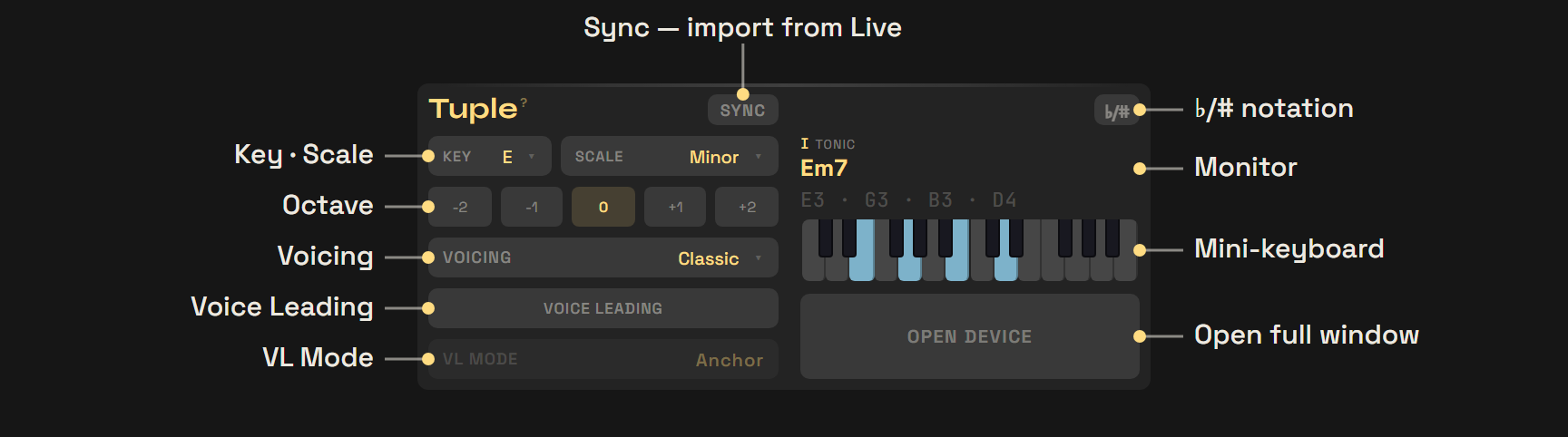
Figure 3.1 — The compact strip in Live's device rack, every control labelled.
Left — shape the chord
- Key · Scale — the tonal centre and mode the whole grid is built from. Ch. 4
- Sync — import the key & scale straight from Live’s own scale setting.
- Octave — shift the whole chord up or down, −2 to +2.
- Voicing — how the notes are spread, from close position to genre grips (28 in all). Ch. 5
- Voice Leading + Mode — smooth the motion from one chord to the next.
Right — see what you play
- ♭/# — switch the note names between sharps and flats.
- Monitor — the chord you’re playing, its note names and a mini-keyboard.
- Open Device — unfold the full chord grid in its own window (Fig. 3.2).
03 Interface overview · cont'd
Tuple, in the flesh.
The strip on the previous page is simplified. Here is the real full window, captured
live — every control labelled, the same colors and grid you’ll meet in Ableton.
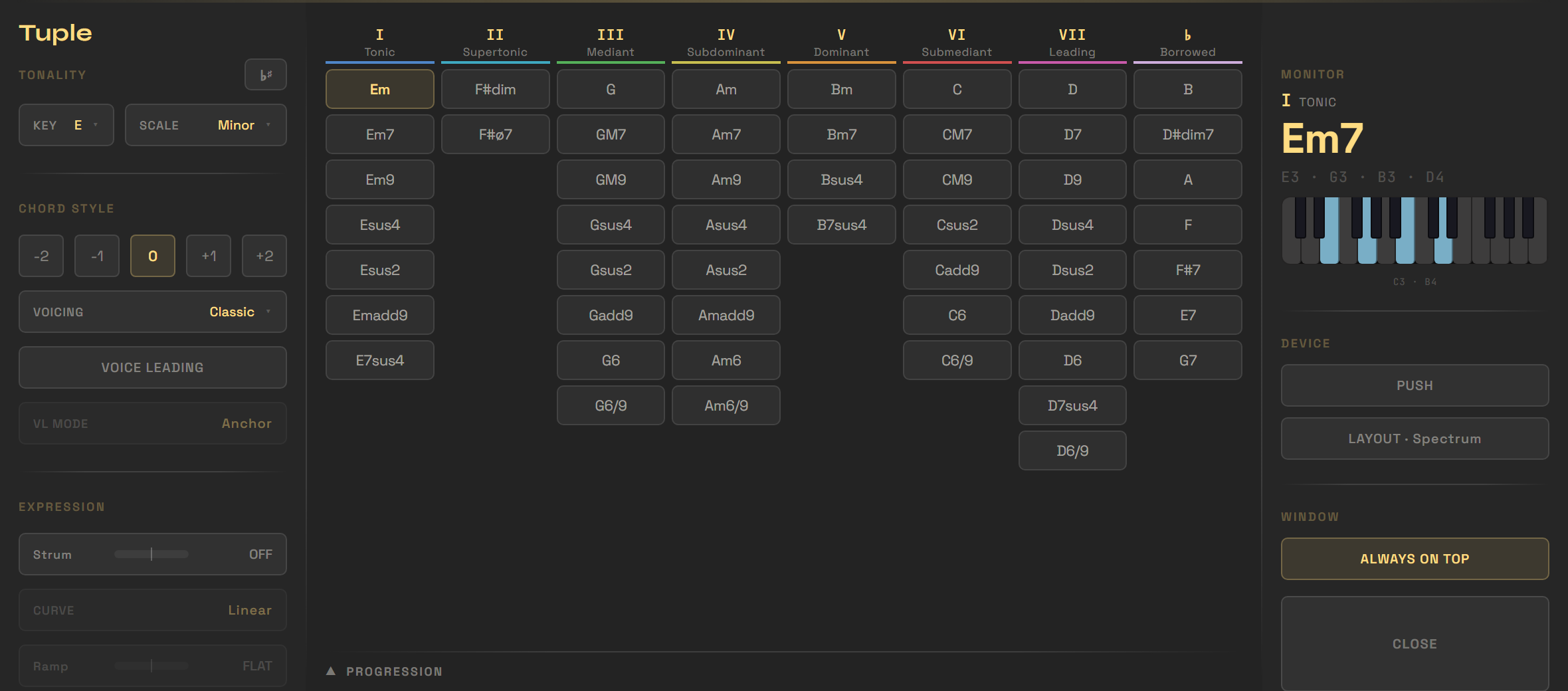
Figure 3.2 — The full window in E Minor. Click any
chord to audition it — the active cell turns gold and the Monitor shows its notes.
Left column
Tonality sets key, scale and Sync; Chord Style holds Octave, Voicing, Extended and
Voice Leading; Expression adds Strum, Curve, Ramp and Humanize. Everything that shapes
the chord lives here.
Centre — the grid
Every valid chord for the key, color-coded by degree: seven columns
I–VII plus a Borrowed
column. The Progression bar at the bottom opens the capture drawer.
Right column
The Monitor shows the played chord; Device holds Push, Layout and Smart; Window
keeps the window on top and opens/closes it. Click the logo (?) for the About panel and
updates.
03 Interface overview · cont'd
The full window (grid).
One click on OPEN unfolds the whole grid:
seven degree columns, the BORROWED column,
and a tool column on the right.
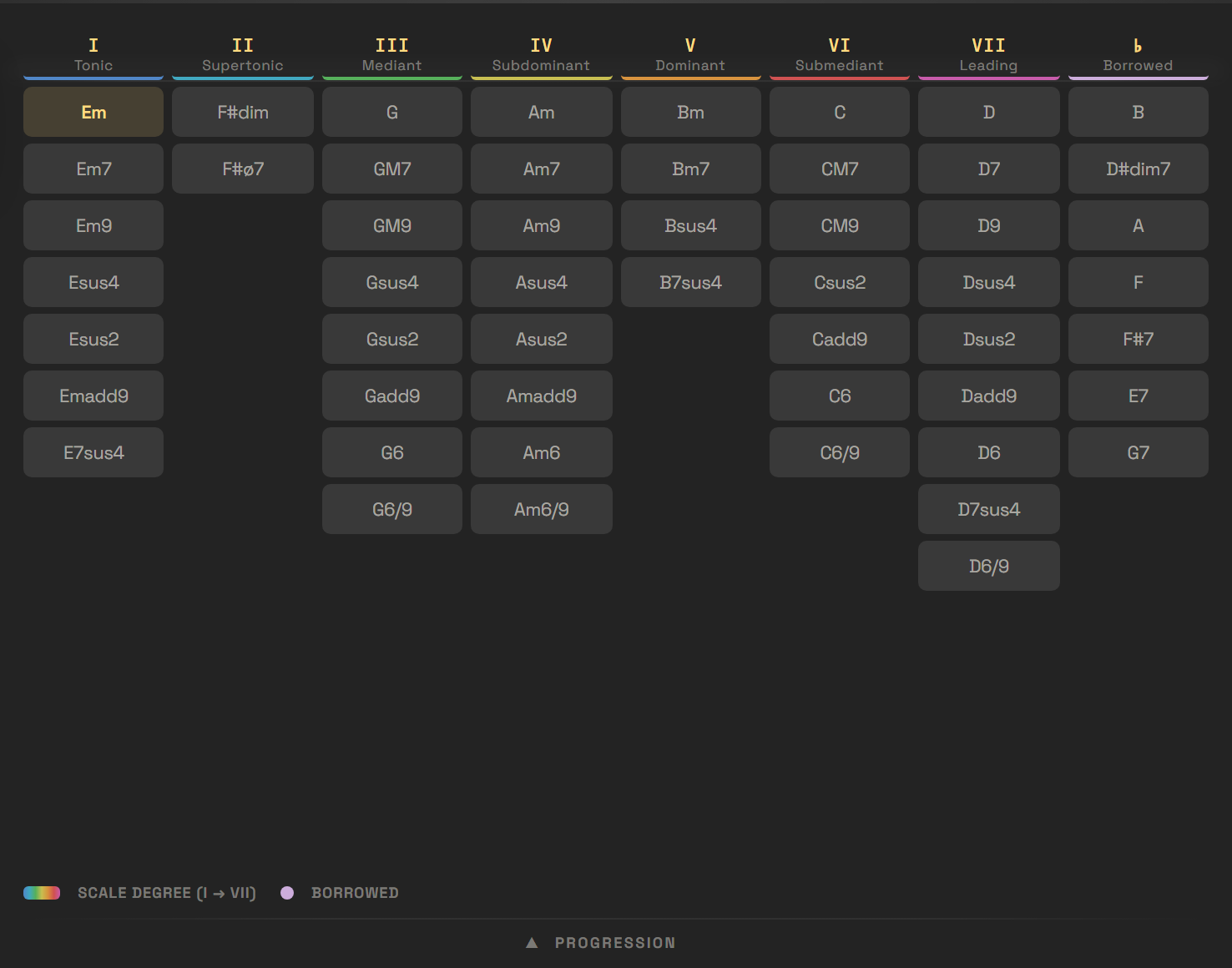
Figure 3.3 — The grid in E Minor: seven degree
columns I–VII + Borrowed, every valid chord for the key. The active cell is
gold; borrowed chords sit in the last column.
Reading the grid
- Columns = the seven degrees, from I (tonic) to VII (leading tone).
- Rows = chord families, ordered from simplest (triad) to most colorful (extensions).
- Right column = borrowed chords & secondary dominants.
Tools (right column)
- Layout — changes the degree color logic.
- Push — grabs the Push 2 pad grid.
- Always on top · Open/Close — window management.
- Logo (?) — click the logo (top-left) to open About: version, links, and the update panel when a new version is available.
04 Tonality
Key · Scale · Sync.
The Tonality section defines the harmonic world: the whole grid is
recomputed the moment you change root or scale.
Key — the root
Choose one of the twelve chromatic roots, from C to
B. This is the tonal center the degrees
I–VII are built around.
Scale — the mode
The scale sets the color of the degrees and the available chords:
| Scale | Character | Typical degree I |
|---|
| Major | Bright, stable — the tonal reference | I maj |
| Minor | Dark, natural minor (Aeolian) | i m |
| Dorian | Minor with a major sixth — jazz, modal | i m |
| Phrygian | Tense minor, minor second — Spanish color | i m |
| Lydian | Dreamy major, augmented fourth | I maj |
| Mixolydian | Major with a minor seventh — groove, blues | I 7 |
| Harmonic Minor | Dramatic minor, raised leading tone | i m |
| Melodic Minor | Minor with a raised 6th & 7th — jazz minor | i m |
| Locrian | Diminished tonic, ♭2 & ♭5 — unstable, dark | i° |
| Lydian Dominant | Lydian with a ♭7 — the ♯11 dominant color | I 7 |
| Major Pentatonic | Five notes, no semitone tension — open | I maj |
| Minor Pentatonic | Five-note minor — riffs, blues, lo-fi | i m |
Why these? They cover the everyday major and minor modes
plus the jazz minors and the two pentatonics. For colors outside any scale, reach for the
borrowed chords in the grid — secondary dominants and modal interchange, always one
click away.
Sync & accidentals
On load, Tuple imports Live's key & scale automatically — the
grid starts matched to your project, nothing to set up.
The SYNC button re-imports the key and scale set in
Live on demand — handy after you change the key mid-session. If you then change KEY
or SCALE by hand, Tuple unsyncs from Live until the next click on SYNC.
♭/# — flat or sharp notation
The ♭/# toggle (next to SYNC) switches all chord
names between flat and sharp notation — grid,
monitor, and selector update instantly. The preference is saved and restored across
sessions.
| ♭ (flat) | E♭, A♭, B♭ — common in jazz, pop, brass arrangements. |
| # (sharp) | D#, G#, A# — common in guitar-centric contexts. |
Workflow
Set the scale in Live once, then sync all your Tuple devices to it. Change the key
in Live and re-sync to transpose a whole session.
Both buttons in the strip
SYNC and ♭/# are always
visible in the compact strip — no need to open the full window to switch notation
or re-import the Live scale.
05 Chord style
Octave · Voicing · Voice Leading.
Four settings, in this order: the register, then how the notes are
spread, then how they move from one chord to the next.
Octave
Transposes the whole chord, from −2 to
+2 octaves. Direct selection — click the value you want.
Handy to seat chords in the right register within your arrangement.
Voicing
Defines how the chord's notes are spread across the register. Twenty-eight voicings, from
close position to wide pads and genre grips — see the reference on p.12.
Design rule
Every voicing is playable with one hand, root included. Only
PIANO is deliberately two-handed (low root +
right-hand chord).
Extended EXT
The EXT toggle, next to Voicing, enriches every chord with its
natural tensions — 9ths, 11ths and 13ths — so the grid serves a second, richer
set of chords (M13, m11,
6/9…), voiced to stay playable rather than muddy. Turn it off for the
plain triads and sevenths.
Voice Leading
When on, Voice Leading pulls each new chord close to the previous one: the
voices move as little as possible, so transitions become smooth and musical instead
of jumpy.
Two linking modes
| Anchor | Anchors the voices around a fixed register — stable and predictable. |
| Flow | Minimal movement from the previous chord — the smoothest, most legato. |
In practice
For legato pads, keep VL ON in
Flow mode. For repeated rhythmic stabs, turn it off
so every chord lands in the same place each time.
Which voicings respond
VL reshapes the flexible voicings most — Classic, Piano, Open, Spread and the
Drops. The register-locked genre voicings (House, Prog, Trance, Funk, Jazz, the Rootless
family, Organ, French Touch, Broken, Soul, Clav…) keep their fixed grip, so toggling VL barely
changes them — that’s by design.
Expression (full window)
The full window adds four performance controls. Drag or scroll each;
center / 0 = off.
| Strum | Spreads the chord over time. Left = down (high→low), right = up (low→high); larger values turn the chord into an arpeggio. | ±250 ms |
| Curve | Shape of the strum spacing: Linear, Accelerate or Decelerate. | 3 shapes |
| Ramp | Velocity ramp across the strummed notes. Left = fade (first note loudest), right = build. | ±100 |
| Humanize | Subtle, random velocity & timing variation for a less mechanical feel. | 0 = off |
05 Chord style · cont'd
What Voice Leading changes.
Voice Leading is the craft of moving between chords with the least motion:
keep the notes two chords share in place, and let the rest step to the nearest note instead of jumping.
It makes a progression sound connected and legato rather than blocky — and Tuple applies it
automatically, re-laying each chord to sit close to the one before.
Without Voice Leading
Each chord plays in root position, in a fixed register. The whole hand jumps from one chord to the
next — fine for rhythmic stabs, but disconnected for sustained parts.
C → F: the hand "jumps" to the right.
With Voice Leading
The target chord is rearranged to sit near the previous one — shared notes hold, the rest glide by
a step. The fingers barely move and the progression flows. Two modes set how far it reaches:
Anchor keeps a stable register, Flow chases the smoothest path (Ch. 5).
C → F: C is shared, only two voices glide by a step.
By ear
Voice Leading doesn't change which chord you play — only how it's
laid out. The harmonic function stays identical; what changes is the smoothness of the
transition.
06 The grid & borrowed chords
Every valid chord, never hidden.
Tuple's principle: show the maximum number of valid chords for the chosen
scale, and keep borrowed chords inside the same grid.
The diatonic degrees
Each column is a degree of the scale, named by its function:
| I | Tonic — rest |
| II | Supertonic |
| III | Mediant |
| IV | Subdominant — the lift |
| V | Dominant — the tension |
| VI | Submediant — the relative |
| VII | Leading tone — instability |
The rows stack the degree's chord families, from triad to extensions. A column stops
where the scale no longer yields a valid chord — hence the uneven column heights.
The Borrowed column
The last column gathers borrowed chords (modal interchange) and
secondary dominants — colors from elsewhere that enrich the key
without leaving it.
| In major | Role |
|---|
| ♭III ♭VI ♭VII | Borrowed from the parallel minor |
| iv | Minor subdominant |
| V/V V/ii V/vi | Secondary dominants |
Instant color
A minor iv right before returning to the
I is one of the most moving borrowings in pop.
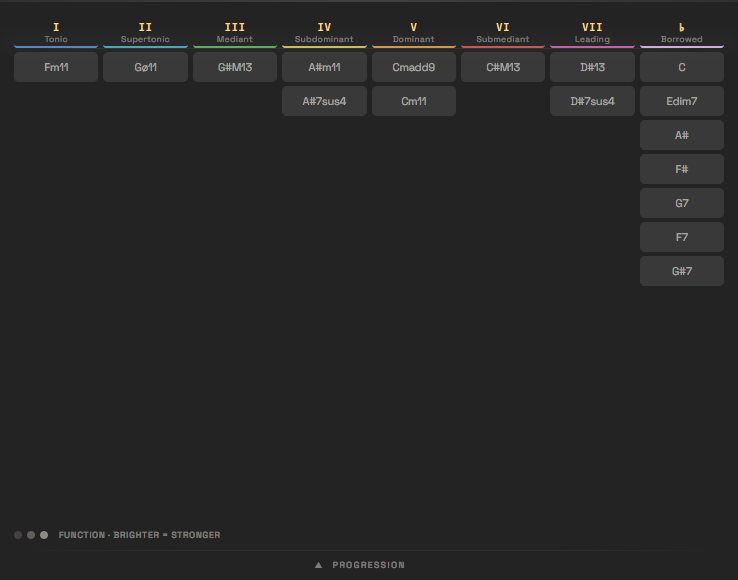
Figure 6.1 — With EXT on, the grid serves a
second, richer set: M13, m11,
13 and other tensions, in place of the plain triads and sevenths.
07 Color logics
Layout — reading the grid in color.
The LAYOUT button cycles through five color
logics. The grid stays the same; only the way you read it changes.
| Logic | What the color encodes | Use it to… |
|---|
| Spectrum | A distinct hue per degree, rainbow-style (the bar above). | spot the column instantly. |
| Function | tonic · subdominant · dominant. | think in tension/rest. |
| Tension | home → tense, by dissonance. | pace the color of a progression. |
| Fifths | near → far on the circle of fifths. | compose by fifth motion. |
| Quality | major · minor · dim · aug. | sort chords by type. |
In every logic, borrowed chords stay violet.
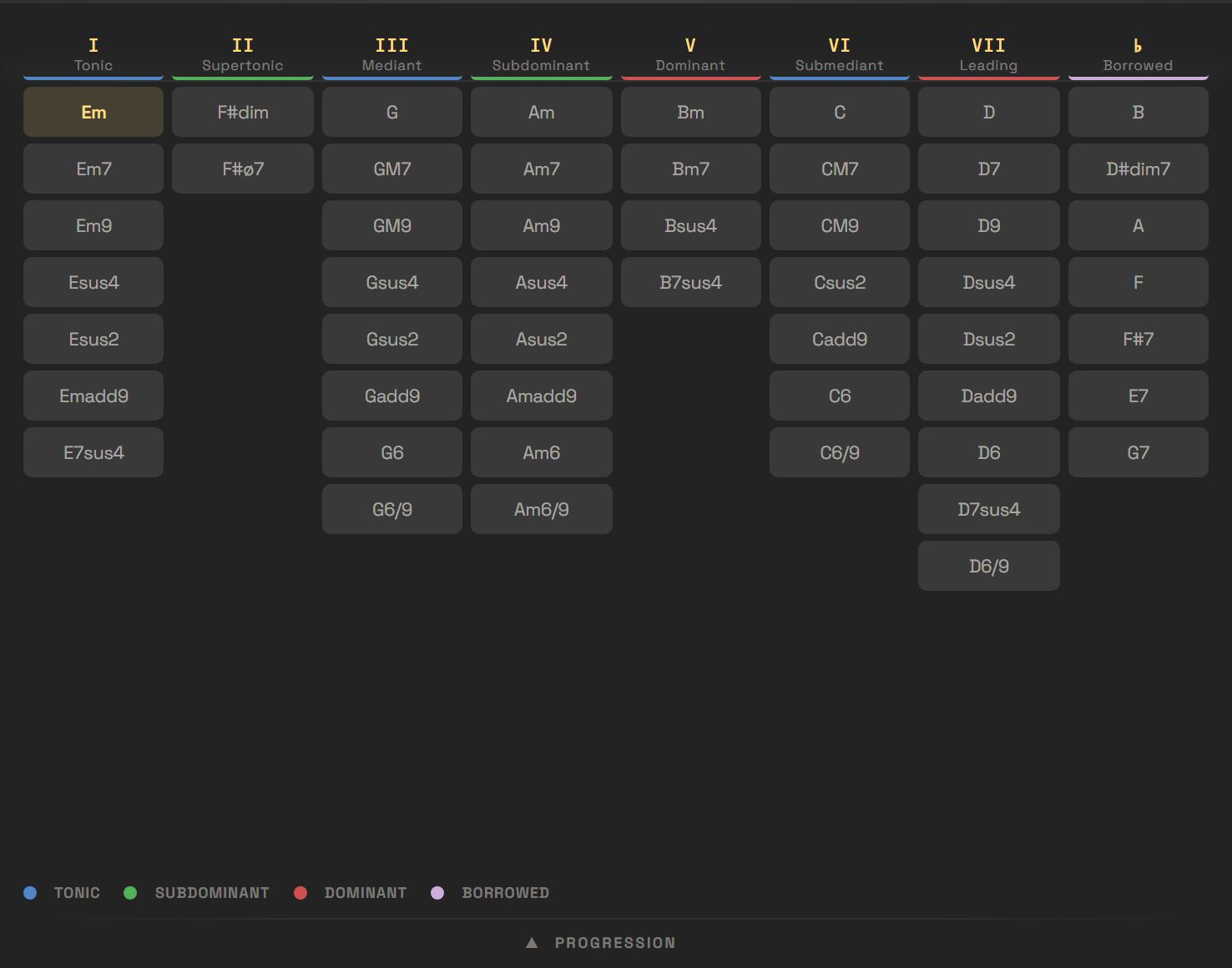
Figure 7.1 — The same grid read in Function:
tonic (blue), subdominant (green), dominant (red), borrowed (violet).
Advice
Start in Spectrum to memorize where the degrees are, then switch to
Function once you think in tonic / subdominant / dominant.
08 Smart Chords
Where to go next.
Turn SMART on and, as you play, Tuple lights up the chords
that follow naturally from the one you just played. It’s a guide laid over the grid — every
chord stays playable; nothing is hidden or forced.
How to read it
The hue is always the degree color of your current Layout, so the grid still reads the
same. The brightness carries the suggestion: brighter = stronger. Empty
cells stay dark, and the chord you just played stays highlighted as the anchor.
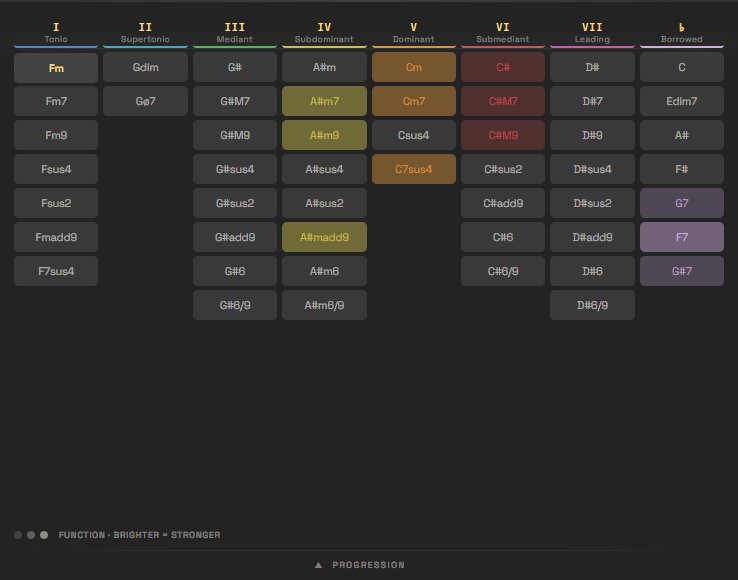
Figure 8.1 — Smart in Function mode after playing
the I: the strongest follow-ups glow, grouped across functions.
| Mode | What brightness means | Use it to… |
|---|
| Function | Harmonic strength — how strongly a chord wants to follow, by function (resolutions, dominants, set-ups, surprises, color). | find the convincing next move. |
| Voice leading | Smoothness — how little the notes move to get there, measured on your current voicing & octave. | keep the motion seamless. |
The SMART button cycles Off → Function → Voice leading.
Suggestions are grouped by harmonic function, so you always see a spread of options — a few resolutions,
a few tension moves, a few colors — never a whole row lit at once.
Good to know
Smart works in any Layout — it’s a mode, not a color scheme. And because
Voice leading reads your actual voicing, changing the Voicing re-ranks
the suggestions: the same progression can light up differently in Classic vs. Spread.
09 Reference
The twenty-eight voicings.
The voicing decides how the notes are spread. All are playable with one
hand (except Piano; Spread and the
Drop voicings run wide by design), with the root staying in register.
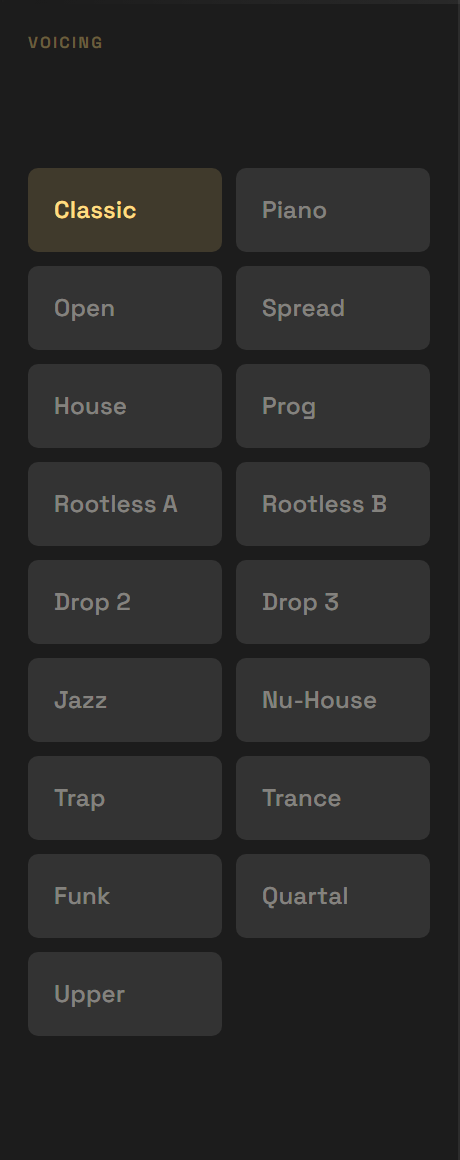
Figure 9.1 — The Voicing menu. Click VOICING
to open it and pick any of the twenty-eight.
| Voicing | Layout | Best for |
|---|
| Classic | Close position, notes stacked as tightly as possible. | neutral, all-purpose reference |
| Piano | Low root + the rest of the chord grouped above (two hands). | piano parts, ballads |
| Open | Second voice raised an octave — airy chord. | pads, clarity |
| Spread | Every other voice raised — wide and open. | strings, cinematic pads |
| Drop 2 | 2nd voice from the top dropped an octave. | guitar/jazz, balanced sound |
| Drop 3 | 3rd voice from the top dropped an octave. | wide voicings, open low end |
| Rootless | No root — compact grip when the bass is covered. | layering over a bassline |
| Rootless A | No root, structure as is (3-5-7-9). | jazz, when the root is covered elsewhere |
| Rootless B | No root, lower half raised (7-9-3-5). | alternating jazz comping |
| Jazz | Rootless 3-7(-9) shell locked in the C3 comping zone. | jazz / electronic left-hand comping |
| New Jazz | Rootless, airy — one voice raised an octave. | open, modern jazz-house |
| Quartal | Stacked fourths instead of thirds — the “So What” sound. | modal jazz, ambient, open colors |
| Upper | An upper-structure triad over the chord tones — bright, polychordal. | tension, lush extended chords |
| Sus | Suspended — the 3rd replaced by the scale’s 2nd. | suspensions, ambiguous color |
| House | Rootless deep-house stab (sus2 + 6/9), bright, anchored C3. | house, deep house |
| Prog | Wide prog-techno pad: low + high extensions. | prog, melodic techno |
| Trance | Anthem grip: root + 3rd (+7th) + root octave on top. | trance, supersaw anthems |
| Funk | “Tenth” grip: root + the 3rd raised an octave. | funk / soul, Rhodes |
| Organ | St Germain-style Hammond pad — open, airy, breathing. | deep house, soulful house |
| French Touch | Daft Punk warm Rhodes — root-inclusive close grip, C3. | french touch, filtered disco |
| Broken | Dego / Kaidi Tatham dense closed cluster, low. | broken beat, west-london soul |
| Deep Tech | Dub-techno m7 rootless — dark but clean. | dub techno, deep / minimal |
| Detroit | Compact Detroit-techno shell (root + 3rd + 7th). | Detroit techno, strings |
| Soul | D’Angelo neo-soul cluster with the low gospel 9th rub. | neo-soul, gospel |
| Clav | Funky close clav grip stacked from C#3. | clav / funk, Stevie-style |
| Rave | High stab: root + chord + root octave on top. | rave, hoover stabs |
| Wide | Two-octave spread — alternating voices up. | cinematic, huge pads |
| Power | Root + 5th + octave, no 3rd. | rock, EDM, ambiguous power |
Reminder
The Rootless voicings shine when the root is covered elsewhere: they
free up the low end and keep the chord light.
10 Reference
The chord families.
Each column stacks these families, in the priority order below. The engine
only shows a family when the scale makes it valid for that degree.
| Family | Example labels | Description |
|---|
| Triad | maj · m · dim · aug | The three-note chord — always available. |
| Seventh | M7 · m7 · 7 · dim7 · ø7 | Adds the 7th — depth and direction. |
| Ninth | M9 · m9 · 9 | Extends to the major 9th. |
| Sixth | 6 · m6 | Soft color, without seventh tension. |
| Add9 | add9 · madd9 | Triad + 9th, no 7th — bright. |
| Sus4 | sus4 · 7sus4 | Fourth instead of the third — suspension. |
| Sus2 | sus2 | Second instead of the third — open. |
| Six/Nine | 6/9 · m6/9 | Sixth + ninth — rich and stable. |
| mMaj7 | mMaj7 | Minor with major 7th — dramatic color. |
| 7♭9 / 7♯9 | 7b9 · 7#9 | Altered dominants — strong tension. |
Engine logic
Tuple detects the real quality of each chord from the scale: the same degree will
sound M7, m7 or
7 depending on context, automatically.
11 Monitor & windows
See & organize.
Monitor
The right panel shows the notes of the current chord in real time
(in gold) and highlights them on a mini-keyboard. It's instant
visual feedback — useful to learn voicings or check the register.
It also reacts before you play: highlight or hover a chord cell in
the grid and the Monitor previews that cell's notes, so you can read a chord with your
eyes before committing it.
The dual-window workflow
Tuple splits performance into two surfaces:
- The compact strip in the rack — controls and Monitor always in view.
- The full window with the entire grid, opened via OPEN, one click away.
The grid is never shrunk: the rack's limited height would hide it, so it lives in its
own window — full access stays immediate.
Always on top
Keep the grid window in front while you work in Live: enable
ALWAYS ON TOP in the Window group.
Figure 10.1 — The full window: the entire grid on the left, the Monitor (notes + mini-keyboard) on the right.
Figure 10.2 — The compact strip: controls and the Monitor stay in view inside Live's rack.
Recommended setup
Grid window "always on top" on one side of the screen, Live underneath: you
compose at the grid while keeping the arrangement visible.
12 Progression → Clip
Build it, then bounce it.
Stack chords into a progression inside Tuple, then write the whole thing
straight to a MIDI clip — no re-playing your chords into a record track.

Figure 12.1 — The Progression drawer with a captured progression
(i · iv · ♭VII · ♭III):
each chord is a colored card. Drag to re-order, then press CLIP.
Open the drawer
In the full window, click the Progression bar at the
bottom of the grid. The drawer opens inside the grid area — it never covers your
menus.
Capture
- Turn on CAPTURE.
- Click (or play) chords on the grid — each one is added as a card.
- Turn CAPTURE off when the progression is done.
You can also drag a chord straight from the grid into the drawer to add
it, capture on or off.
Write to a clip
Select an empty clip slot in Live, then press CLIP. Tuple
writes the whole progression, one chord per bar. It never overwrites a
slot that already holds a clip — pick an empty one.
Shape the progression
- Re-order — drag a card left or right.
- Insert — the + on a card marks where
the next captured chord drops in.
- Remove — the × deletes a card.
- Audition — press & hold a card to hear that chord; it sounds
until you release, just like a grid cell.
Good to know
The progression holds up to 8 chords. Each card stores the chord exactly as
you captured it — already voiced and voice-led — so the clip sounds like what
you heard.
A full-window feature
Writing to an Ableton clip needs Live, so the → CLIP
export is device-only. You can still build, re-order and audition progressions in the
browser demo (there it exports a MIDI file instead).
13 Push 2 integration
The grid, under your fingers.
With a Push 2, play the chord grid straight on the pads — one chord
per pad, the colors mirroring the screen.
Enable
- Connect the Push 2 and open Tuple's full window.
- Click PUSH in the Device section: Tuple grabs the pad grid.
- The pads light up according to the current color logic (Layout).
- Hit a pad: the chord plays, voiced and voice-led, just like on screen.
Push extends the grid, it doesn't replace it: columns = degrees
I–VII + Borrowed, rows = chord families.
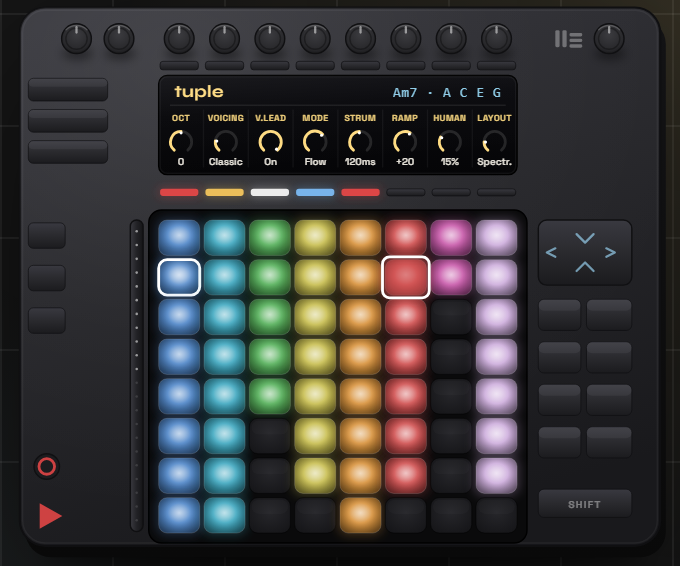
Figure 12.1 — Tuple on Push 2: one chord per pad with the colors
mirroring the screen, the played chord on the display, and the eight controls along the top.
Pads & MIDI
A pressed pad lights up brighter while held. Tuple exposes 8 controls —
Octave, Voicing,
Voice Leading, VL Mode,
Strum, Strum Ramp,
Humanize and Layout — to MIDI
mapping (Cmd/Ctrl+M):
mappable, automatable, saved with your set. Push is optional; everything works via the
mouse too.
13 Push 2 · cont’d
Build a progression on the pads.
Press PROG and the Push becomes a progression companion:
the bottom row holds your progression, and the rows above develop the step you select —
substitutes, what comes next, or a fresh voicing.
The layout
The bottom row is your progression, one chord per pad, left to right. Select a
step and the column above it fills with options for that step — a blank row
separates the progression from the options. Every step keeps its own column, so you read each one
straight up.
Three modes MODE
| Substitutes | Chords that can replace the step at the same harmonic slot — function siblings (I ↔ iii ↔ vi…) and quality variants. |
| Suite | Where to go next — the same Smart suggestions, offered as a chord to follow this one. |
| Voicings | The twenty-eight voicings, to re-voice this step in place. |

Figure 13.2 — The Progression drawer drives it from the screen:
PROG turns the Push companion on, MODE cycles
Substitutes · Suite · Voicings.
Editing is gated by Capture
With CAPTURE on, picking an option edits the progression:
Substitutes and Voicings replace the step,
Suite inserts a new step after it. With Capture off, the options simply
audition — you hear them without changing anything.
Reading the colors
Options start neutral; a pad takes its chord’s degree color the moment you press it, so you
always see what you’re about to commit.
14 Recording
Capture the take.
Chordify is the fastest route and the one to reach for first: play a
one-finger line, record it, and turn every note into its full chord in place. To capture a free live
performance instead, record Tuple’s output onto a second track. (For a fixed progression, use
Progression → Clip, Ch. 12.)
Chordify — the optimal workflow
- Play Tuple with one finger — MIDI keyboard, Push, any controller — each note triggers a chord.
- Arm Tuple’s track, hit record, play your line. Live records the trigger notes natively.
- Select that clip and press CHORDIFY in the Progression drawer.
- Every trigger note becomes its full Tuple chord — voiced and voice-led — rewritten in place.
Why it’s the best way
You perform the rhythm and arrangement with one finger — no chord-playing skill needed —
and keep full control of the harmony after the fact.
Figure 14.1 — CHORDIFY lives in the
Progression drawer, next to CLIP.
Re-voice anytime
Chordify reads the current Voicing, Voice Leading and Extended settings. Don’t like the
result? Undo, change a setting, press CHORDIFY again
— it re-chords the whole clip from your original trigger notes. Device-only.
Alternative — record a live performance
To capture a free performance (especially on Push), record Tuple’s MIDI output onto a second
track: add a MIDI track, set MIDI From to Tuple’s track /
Post FX, set Monitor to
In (the step most people miss), arm and record. In Push mode, also set
the record track’s MIDI To to
No Output so notes aren’t echoed and doubled. For playback,
give that track its own instrument and mute Tuple’s.
15 About & automatic updates
Staying current, from inside Ableton.
About panel
Click the logo (top-left of the window) — it carries a small
? hint — to open the About panel. It shows the
current version, creator contact, Discord and website links, and a
Replay guide tour button to restart the onboarding overlay.
When Tuple detects a newer version on startup, a small pill appears next to
the logo: ↑ v1.X.X. Click the logo to switch the
About panel to Update mode.
Update panel
The panel shows the new version number and a brief changelog. Two paths,
depending on the release:
- Install — downloads the update and replaces the Tuple
folder in place. When it finishes, close and reopen the device in Ableton
to activate the new files.
- Download — opens tuple.live
in your browser so you can install manually. Used when the
.amxd itself has changed (Ableton locks it while
it is loaded).
Later dismisses the overlay for the session.
Ignore hides this version permanently until the next one.
Keep the folder intact
In-place updates write directly to the Tuple folder next to your
.amxd. If you moved the files after installing,
use the Download path instead.
How it works
- At startup Tuple fetches a small version.json
from GitHub. No analytics — just a version number and a reinstall flag.
- If a new version exists, the badge pill appears on the logo. The device
keeps working normally — nothing changes until you click Install.
- Install downloads the ZIP and extracts it next to the
.amxd. The download runs in a background Node
process; progress is shown in the panel.
- Close and reopen the device in Ableton to load the updated files. Your
project settings (key, scale, voicing…) are preserved.
No internet connection?
The badge simply never appears — the device starts normally.
To update manually, download the latest zip from
tuple.live and replace the Tuple folder.
16 Tips · Troubleshooting · Credits
Going further.
Workflow tips
- Compose at the grid, record the MIDI, then edit the notes — Tuple seeds the ideas.
- Mix 2–3 borrowings into a diatonic progression for a chorus that "lifts off".
- Change voicing between verse and chorus without changing the chords.
- Duplicate the track with a different voicing to double / layer textures.
Troubleshooting
| No sound | Tuple must be before the instrument, track armed. |
| Blank interface | Files moved — keep the folder intact, reload the device. |
| Sync does nothing | Define a scale in Live first, then press SYNC. |
| Chords sound muddy | Try a Rootless voicing or raise the Octave. |
| A note won’t stop | Disarm then re-arm the track, or stop the transport. |
| Push pads stay dark | Toggle PUSH in the device; Push 2 must be connected. |
| Several Tuples at once | Fine — each instance is independent. One per track for different keys / voicings. |
FAQ
Is Tuple a sequencer?
No. It's a tool to choose, explore and perform chords in real time.
Do I need a Push 2?
No, it's optional. Everything plays via the mouse or MIDI.
Does it follow my song key?
Yes — Tuple imports Live’s key & scale automatically when it loads.
Can I record what I play?
Yes — Tuple sends real MIDI notes. Arm the track, record, then edit the notes like any MIDI clip.
Are the controls automatable?
Yes — the 8 controls are Live parameters: automate them, MIDI-map them, saved with your set.
Privacy (Version checks). Tuple checks for updates by making an unauthenticated GET request to the GitHub API. This reveals your IP address and that Tuple is running — no other data is transmitted.
Compatibility
Ableton Live 11 / 12 · Max for Live
Controller
Push 2 (optional)
Tuple
Every chord in your key, one click away. Try the demo in your browser before installing.
User Manual — Tuple v1.1 · 2026 Edition
tuple.live
★ Glossary
Key terms, in one place.
A quick reference for the words used throughout this manual.
| Diatonic | Chords built only from the notes of the current key & scale. |
| Degree (I–VII) | A chord’s position in the scale, in Roman numerals (I = tonic, V = dominant…). |
| Tonic · Subdominant · Dominant | The three harmonic functions: rest, lift, tension. |
| Borrowed chord | A chord taken from a parallel mode (modal interchange) for color — kept inside the grid. |
| Voicing | How a chord’s notes are arranged and spaced (which note sits on top, the gaps between voices). |
| Voice leading | Moving each voice the smallest distance from one chord to the next, for smooth transitions. |
| Anchor / Flow | Tuple’s two voice-leading modes: fixed register vs. minimal movement. |
| Inversion | The same chord with a note other than the root at the bottom. |
| Rootless voicing | A voicing that omits the root — your bass instrument supplies it. |
| Drop voicing | One inner voice dropped an octave (Drop 2 / Drop 3) for a wider, open sound. |
| Octave | Shifts the whole chord up or down in register. |
| Layout | The color logic used to read the grid (Spectrum, Function, Tension…). |
| Smart Chords | A guide overlay: as you play, the grid lights likely next chords — by function (strength) or voice leading (smoothness). |
| Strum | Spreads a chord’s notes over time (down or up), up to an arpeggio. |
| Humanize | Small random velocity & timing variation for a less mechanical feel. |